Issue Description
I just installed a new Stalwart server, but now I’m having trouble adding my email in Thunderbird because it can’t find the auto-configuration. I haven’t been able to set it up manually either, since I keep getting a connection error. Now I’m not sure if it’s because of my DNS entry or the WARN message in the log.
WARN No TLS certificates available (tls.no-certificates-available) total = 0
Stalwart Version
v0.16.x
Installation Method
Docker
Database Backend
RocksDB
Blob Storage
RocksDB
Search Engine
Internal
Directory Backend
Internal
I have reviewed the documentation and FAQ and confirm that my issue is NOT addressed there.
on
I have searched this support forum (open and closed topics) and confirm this is not a duplicate.
on
The WARN message is the root cause. Stalwart has no TLS certificate configured, so all TLS-dependent services (IMAPS, SMTPS, STARTTLS, HTTPS) will fail to connect, and Thunderbird’s auto-configuration fetch will also fail if it is being served over HTTPS.
Both issues are connected: the tls.no-certificates-available warning is the root cause of all your connection errors and the broken auto-configuration.
The core problem is that no TLS certificate has been configured. Stalwart’s autoconfig/autodiscover endpoints are served over HTTPS (port 443), so clients cannot reach them – and cannot connect to IMAP/SMTP either – until TLS is working. The WARN you’re seeing confirms this directly.
Here’s what to do:
1. Set up a TLS certificate. The easiest approach is ACME (Let’s Encrypt). Go to Settings › TLS › ACME Providers in the WebUI, create an ACME provider, and Stalwart will obtain and renew certificates automatically. Alternatively, you can supply an existing certificate manually under Settings › TLS › Certificates by uploading the PEM-encoded certificate chain and private key. See the TLS Certificates docs and the ACME overview.
2. Check DNS for autoconfig. For Thunderbird’s Mozilla Autoconfig format, your DNS needs a CNAME pointing autoconfig.yourdomain.com to your mail host. For Microsoft Autodiscover, you need autodiscover.yourdomain.com. The newer PACC protocol requires no subdomain – clients fetch https://yourdomain.com/.well-known/user-agent-configuration directly. The WebUI’s domain management page will show you the exact DNS records to publish. See the DNS setup docs and the Autoconfig docs.
Once a valid TLS certificate is in place, the connection errors should resolve and autoconfig will start working for Thunderbird.
This is an automated reply from the Stalwart Help Bot. Other community members may follow up if this answer is incomplete or wrong.
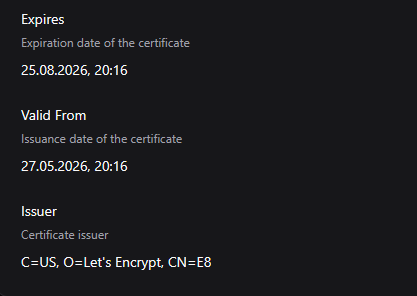
Since I have a reverse proxy running and automatic certificate generation isn’t working, I’m using manual certificate generation. I’m using the Let’s Encrypt certificate generated by Nginx Proxy Manager and adding the `fullchain.pem` and `privkey.pem` files there, but the error still occurs.
and it also shows me here that it’s a valid format
The tls.no-certificates-available total = 0 warning means Stalwart has
zero Certificate records that match the SNI the client is sending; the
listener falls back to a self-signed cert.
If you are certain that your reverse proxy is using a valid certificate you can ignore this error. However, you still need a valid certificate to serve IMAP/SMTP connections.
But what kind of domain does he need? Does he need mail.example.com or example.com? Right now, I’m trying to use a certificate for mail.example com.
TLS error: invalid peer certificate: certificate not valid for name “mail.example.com”; certificate is only valid for DnsName(“example.com”)
So my server has a certificate, but apparently it’s only for example(pot)com, even though I never added it there.