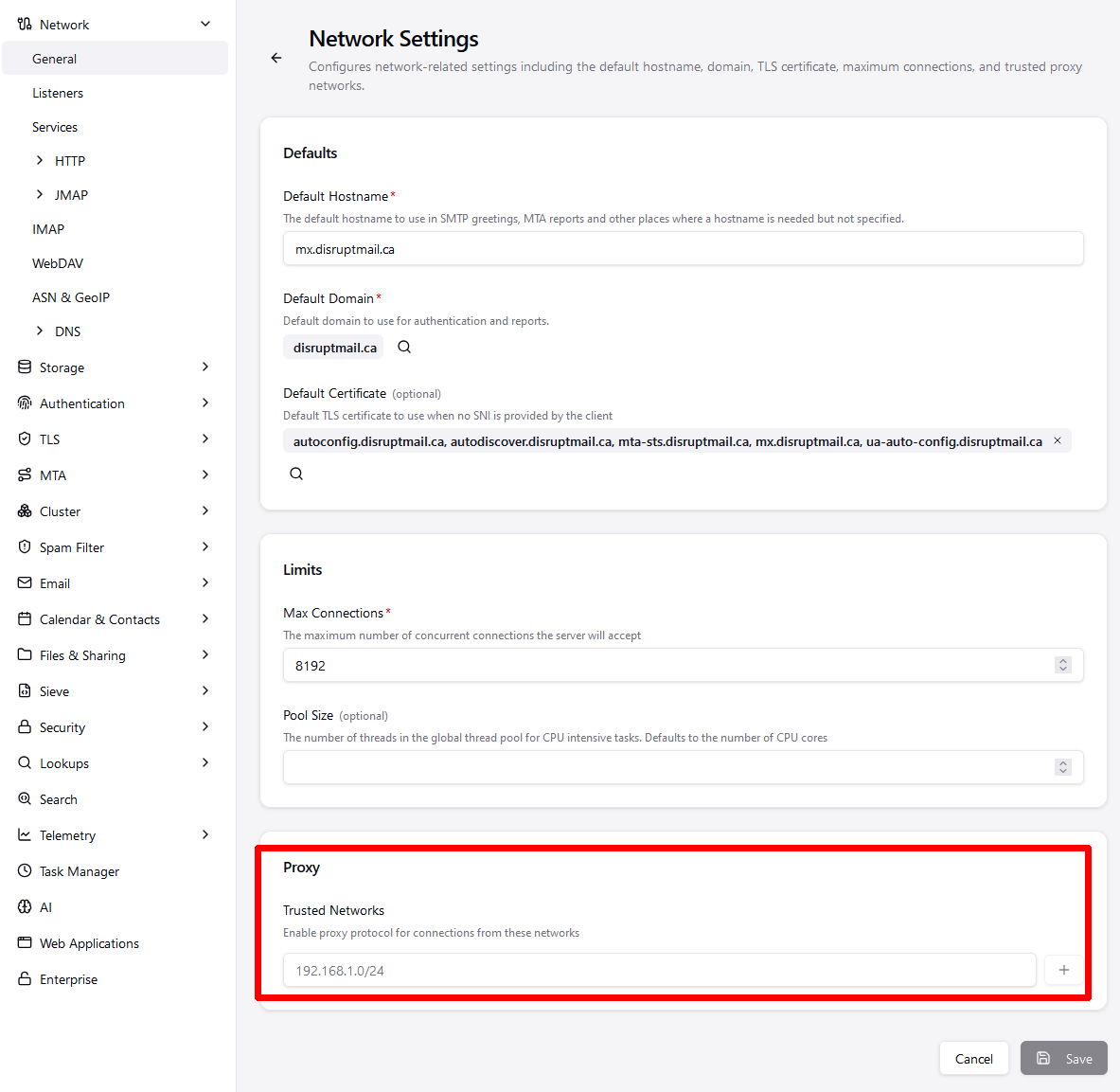
I am trying to place my Stalwart dashboard behind a reverse proxy so it doesn’t have to use the self signed certificate. I am using haproxy, it’s the first (and only) layer in front of Stalwart. I have copied over some configuration of the docs and merged it with my existing config.
Expected Behavior
Certificates are obtained and no self-signed certificates are being used throughout.
Actual Behavior
Browser opens with certificate error, inspecting the certificate shows self-signed.
Reproduction Steps
Configure Stalwart proxy settings
global
    log stdout format raw local0 info
    maxconn 1024

defaults
    mode tcp
    timeout client 30s
    timeout connect 30s
    timeout server 30s
    timeout http-request 30s
    log global

frontend http-in
    mode http
    bind :80
    default_backend server-http

    acl ACL_admin_mail hdr(host) mail.example.com
    use_backend be-stalwart-http if ACL_admin_mail

frontend https-in
    bind :443
    default_backend server-https
    option tcplog

    tcp-request inspect-delay 5s
    tcp-request content accept if { req.ssl_hello_type 1 }
    use_backend be-stalwart-https if { req.ssl_sni -m str mail.example.com }
    use_backend be-stalwart-https if { req.ssl_sni -m str mta-sts.example.com }
    use_backend be-stalwart-https if { req.ssl_sni -m str ua-auto-config.example.com }
    use_backend be-stalwart-https if { req.ssl_sni -m str autoconfig.example.com }
    use_backend be-stalwart-https if { req.ssl_sni -m str autodiscover.example.com }

backend be-stalwart-http
    mode http
    server server1 192.168.1.33:8080 check

backend be-stalwart-https
    mode tcp
    option tcplog
    server stalwart_mail_https 192.168.1.33:443 send-proxy-v2
Image there are other backend and rules as well, they do not collide.
Configured DNS zone including discovery subdomains.
Start Stalwart server and configure it using the onboarding process.
Login with the generated [email protected] email and generated password
Go to system settings and configure trusted proxies, then restart again. → Proxy Protocol | Stalwart
Try using the HTTPS port
Stalwart Version
v0.16.x
Installation Method
Docker
Database Backend
PostgreSQL
Blob Storage
PostgreSQL
Search Engine
PostgreSQL
Directory Backend
Internal
I have reviewed the documentation and FAQ and confirm that my issue is NOT addressed there.
on
I have searched this support forum (open and closed topics) and confirm this is not a duplicate.
on
I understand that topics in this category are triaged by a bot first but a human reply will follow up. If I’d prefer a human-only reply, I’ll add the no-ai tag to my topic.
The self-signed certificate you’re seeing is very likely because Stalwart’s ACME certificate issuance hasn’t actually been configured yet — proxy protocol/trusted-networks settings only affect how Stalwart reads the client’s real IP, not certificate issuance. Setting trusted proxies alone will never obtain a Let’s Encrypt certificate; that requires a separate step.
To get real certificates instead of the self-signed fallback:
Create an AcmeProvider object (Settings › TLS in the WebUI) with the ACME directory, contact email, and challenge type. The default challenge type is TlsAlpn01, which works fine with your TCP-passthrough HAProxy setup since HAProxy just forwards the raw TLS bytes over 443 to Stalwart based on SNI, and Stalwart itself completes the TLS-ALPN-01 challenge.
For each Domain object (mail.example.com, autoconfig.example.com, etc.) set certificateManagement to Automatic and point acmeProviderId at the provider you created. Without this, the domain keeps using the self-signed fallback certificate regardless of proxy configuration.
Confirm proxyTrustedNetworks in SystemSettings (or overrideProxyTrustedNetworks on the listener) includes the HAProxy source address so the Proxy Protocol header is actually honored — otherwise the connections are still processed but the client IP/TLS info will be wrong (this doesn’t affect certificates, but is worth verifying while you’re in there).
If your dashboard is reached at a URL/port that differs from Stalwart’s defaultHostname on 443, set STALWART_PUBLIC_URL so ACME/OIDC discovery documents match what clients actually reach.
Since TlsAlpn01 needs Stalwart itself to answer on 443 with the real TLS handshake (which your TCP-passthrough config allows), this should work once the AcmeProvider and Domain certificate settings are actually in place. It’s normal to see a brief self-signed warning right after enabling this until the first certificate is issued.
In the onboarding of the server I set the server hostname to mail.example.com and the default email domain to example.com, where example.com is replaced by the actual domain name. That should cover point 4.
After the onboarding has finished and Stalwart has been restarted I set step 3. Currently setting it open very wide to the two smallest private CIDR ranges because that’s the two used in my network, once everything is working I will pin it to the exact IP.
Then I went onwards to step 1. I checked my AcmeProvider and it is pre-seeded with a TlsAlpn01 provider using letsencrypt. This is the provider that I want so I am keeping that.
I just have one domain object right now, that domain is failing to obtain a certificate. The DNS zone has been configured as shown in the UI. The certificate management is set to automatic and uses the earlier mentioned, and only, ACME provider.
The thing is that this exact configuration works if there is no proxy in front of it.
The weird thing is also that I don’t see any logs, the logs folder that was set by default during onboarding isn’t even created (at /var/log/stalwart). Neither do I see any logs in the Stalwart UI at Management > Observability > Logs. I also find no logs in the Docker container after I have restarted for the onboarding process to complete.
You have Proxy Protocol enabled, do you have the IP address of the proxy listed in TrustedNetworks? If not, it will not accept the connection as it is not expecting the header.
It sounds to me like you have an issue with proxying tls alpn request but not sure, try to configure http 01 instead, it is more straightforward to proxy, but you also need to make sure then that everything that is in subjectAlternativeNames of your Domain certificateManagement is proxied, and make sure you have localhost in proxyTrustedNetworks like “127.0.0.0/8” “::1”.
Maybe try to enable stdout tracer or something so you see logs and not try to guess.
Two things seem to be the issue here. First, the backend sends PROXY protocol (send-proxy-v2), and Stalwart drops any PROXY-protocol connection whose source isn’t in proxyTrustedNetworks before it does anything with it. If the haproxy host’s IP isn’t trusted, the connection is refused before the TLS/ACME challenge is ever processed, which is exactly why you get the self-signed fallback and nothing in the logs. Add the haproxy IP (and 127.0.0.0/8 and ::1) to proxyTrustedNetworks. Disrupt’s reply is pointing at the same thing. For details check the docs at Proxy Protocol | Stalwart.
Second, on the missing logs: the onboarding default writes to /var/log/stalwart, and if that directory doesn’t exist in the container the file tracer produces nothing. Enable a console/stdout tracer so you can see what’s happening instead of guessing; kanashimia’s suggestion there is the right move.
TLS-ALPN-01 can work through haproxy TCP passthrough with send-proxy-v2, but only once the trust check passes, so fix that first. If you’d rather not fight the ALPN path, HTTP-01 or DNS-01 are easier to reason about behind a proxy: HTTP-01 needs every name in the domain’s subjectAlternativeNames proxied on :80, DNS-01 needs automatic DNS management. Also double-check the SNI list in your https-in frontend covers every SAN on the certificate, or the challenge host won’t route to Stalwart.